Devices & setup
How to Set Up IPTV on Firestick in 2026: Fire OS vs. Vega OS
Start with your operating system. Fire OS supports compatible Android players; Vega OS needs its own supported app or web service. Here’s how to choose the right route, add your account and check playback.
Installing an IPTV player does not provide licensed channels by itself. You also need an authorized account or playlist that works with that player. Before downloading anything, check your Fire TV model and OS →
Sources checked . Based on official documentation; no physical-device test is claimed.
Before you start: what you need
Have the device and your service details ready before choosing an app. A successful installation is only the first part of setup.
- Your Fire TV Stick, remote and compatible TV. Connect the device and power it according to the instructions for that exact model.
- A working internet connection. Complete the device’s network setup first.
- Your Amazon account, where required. Appstore downloads may require account verification.
- A compatible player. Check its developer, supported device/OS, login formats and any app fees before installing.
- Authorized streaming access. Obtain the account, playlist or supported sign-in instructions directly from the service you are entitled to use.
A player manages playback; a service supplies access to content. Paying for a player does not establish a subscription or permission to watch a channel. Check both separately. General account questions are covered in our support FAQ.
Check whether your Firestick uses Fire OS or Vega OS
Do not choose instructions from the words “4K” or “HD” alone. Similar names can describe different generations and different app platforms.
- Open Settings, then My Fire TV → About. Some interfaces use Devices & Software; older Amazon documentation uses Device. Inspect the device and software information shown there.
- Record the model/generation and software information. If the screen does not clearly identify the generation, compare the model information with your Amazon order or packaging and Amazon’s device specifications. Do not post the serial number publicly.
- Match the exact device to the table below. For a model not listed, use Amazon’s current specifications. If the model or OS remains uncertain, confirm it with Amazon before attempting an APK installation.
Menu references: Amazon’s My Fire TV / Devices & Software → About instructions and Fire TV settings documentation. Labels can vary with software.
Five models, two platforms. On small screens, scroll the table sideways to compare all columns.
| Model | Released | Operating system | Android APK installation | Setup route |
|---|---|---|---|---|
| Fire TV Stick 4K Plus | 2025 | Fire OS 8 | Conditional: compatible APK only | Appstore first; official-source installation if supported |
| Fire TV Stick 4K Max (2nd generation) | 2023 | Fire OS 8 | Conditional: compatible APK only | Appstore first; official-source installation if supported |
| Fire TV Stick 4K Select | 2025 | Vega OS | No Android APK workflow | Compatible Vega Appstore app; supported web service if available |
| Fire TV Stick HD | 2026 | Vega OS | No Android APK workflow | Compatible Vega Appstore app; supported web service if available |
| Fire TV Stick 4K (3rd generation) | 2026 | Vega OS | No Android APK workflow | Compatible Vega Appstore app; supported web service if available |
Model names, years and OS families: Amazon Fire TV device specifications. Installation routes are the editorial recommendations explained below, not a guarantee that every player supports each model.
Do not identify Vega by a “1.x” version number. Amazon also documents Vega OS 2.0. Firmware versions can change, and different Amazon pages may reflect different releases. The exact model and OS family are the useful starting points. Older Fire TV devices vary by generation. See Amazon’s OS overview and model mapping.
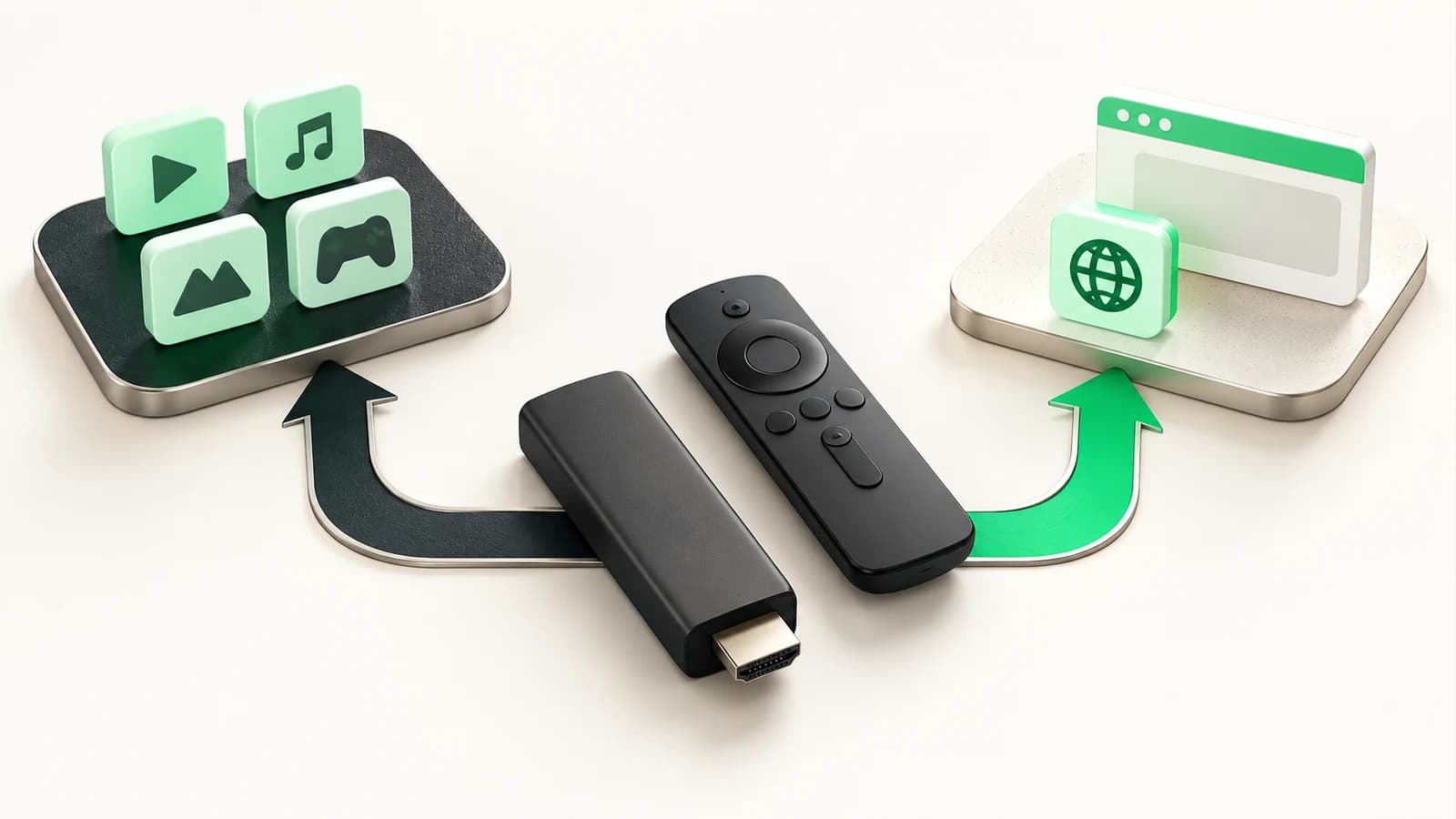
Fire OS
Android-based platform
Vega OS
A separate app platform
- Verified compatible Appstore app
- Provider-supported web service, if available
Fire OS vs. Vega OS: what changes?
Fire OS: Android-based, with compatibility checks
Fire OS is based on Android. That makes a compatible Android player a possibility, not a promise: its Android-version requirements, remote controls, dependencies and installation policy still matter. An app designed around Google services may not work as expected. Amazon explains these Fire OS compatibility differences.
Vega OS: a separate app platform
The normal Android APK / Downloader installation workflow does not apply to Vega OS. Renaming a file or enabling developer mode will not turn an Android player into a Vega app.
This does not mean that no application can ever be deployed outside the store on Vega. Amazon documents a separate developer workflow for Vega packages, with developer tools and authentication. That is for developing and testing Vega apps, not a consumer workaround for an unsupported IPTV player. See Amazon’s Vega app deployment and developer-mode requirements.
Method 1: install a player from Amazon Appstore
Start with the Appstore on either operating system. A listing for another Fire TV model does not establish compatibility with yours; app availability can also differ by region and change over time.
- Use Find on the Fire TV home screen to search for the player recommended by your authorized service, or use Alexa voice search. Amazon’s app-download instructions describe this route into the store.
- Open the app’s detail page. Match the developer and app name with the developer’s official website. Check the description, device eligibility, login methods and any price. Amazon’s device-identification guidance points to the listing’s Works With information for compatibility.
- Select Get or the purchase control shown. Review any charge and complete Amazon account verification if requested. Wait for installation to finish.
- Open the player. Follow its own onboarding. If it asks for an app account, determine whether that is separate from your streaming-service account.
- Add your authorized service using a login format the player supports. Continue to the login and playlist section, then test playback.
If the listing is absent or unavailable for the device, pause here. On Fire OS, check the developer’s supported distribution options. On Vega, use the separate route below. An app with a familiar name is not proof of OS compatibility.
Method 2, Fire OS only: install from the player’s official source
Use this route only after confirming Fire OS and finding the developer’s current, explicit support for your device. An app can be missing from the store because of distribution choices, regional availability or incompatibility. Its absence alone does not tell you which.
- Identify Fire OS
Confirm the exact model and OS family.
- Choose a compatible player
Match the app to your device and authorized service.
- Use a supported installation method
Appstore first; official developer source only where allowed.
- Add your account or playlist
Use the login format that your player actually supports.
- Check playback
Test picture, sound, remote navigation and any supplied guide data.
- Verify the official download and requirements. Go to the player developer’s own website. Confirm that it offers an Android APK intended for your Fire OS version and TV remote, and read its current installation instructions. Avoid APK mirrors, bundles and unverified short codes. Android supports developer-controlled distribution, but that does not guarantee any particular app will run on Fire TV.
- Use the developer’s supported transfer or download method. If Downloader by AFTVnews is offered for your verified Fire OS device and the player developer recommends it, obtain that downloader through its legitimate listing and enter the developer’s full download URL. This guide has not verified its current availability on every device or region. If it is unavailable, ask the player developer for a supported method; do not substitute a random installer.
- Find installation settings only if required. Amazon documents Settings → My Fire TV (or Device) → Developer Options. On some Fire OS versions, that menu is hidden: under About, select the device entry seven times, then return to the preceding menu. This is a documented reveal step, not permission to bypass restrictions. See Amazon’s Developer Options guidance.
- Grant only the installation permission shown for the trusted installer. Depending on the interface, the control may be labeled Install unknown apps for a specific source or Apps from Unknown Sources. Amazon’s documentation uses the latter; Android documents per-source permission on newer Android versions. Exact Fire TV labels vary. If the expected control is unavailable or policy blocks installation, stop and use a supported route. ADB debugging is not required for this on-device download procedure.
- Check the file before accepting installation. Confirm the website, app name, version and requested permissions against the official developer information. Cancel if the source or app differs. If installation succeeds, open the player and add your authorized account.
- Remove temporary installation permission afterward where the interface allows it. Re-enable it only when deliberately installing a verified update. Follow the developer’s update instructions; do not assume an app installed outside the store will update automatically.
Stop at an unsupported step. These are documented, conditional instructions—not a claim that every current Fire OS build allows the same installation path. Recheck the device and app documentation when a menu or package differs.
What to do on Vega OS
For Fire TV Stick 4K Select, Fire TV Stick HD (2026) and Fire TV Stick 4K (3rd generation, 2026), check Vega support before following any player tutorial.
- Check the device’s Appstore. Find the intended app, then confirm the developer’s Vega support and the listing’s device eligibility. If confirmed, install it through the store and follow its supported account setup.
- If there is no compatible app, ask about web playback. The provider must explicitly support the browser and device you have. Check sign-in, remote navigation, audio/video formats and any protected-playback requirements before relying on it.
- If neither route is supported, use a compatible device. Ask the service which devices it supports before buying hardware or paying for another player. Keep your existing subscription/device limits in mind.
Amazon documents browsing with Silk on supported Fire TV devices. That alone does not verify a particular provider’s web player on Vega. A website opening successfully is not the same as its streams playing correctly.
No named IPTV player or browser-based IPTV service is presented here as verified for Vega. Do not apply the Fire OS APK procedure to these devices, and do not use Vega developer mode as an Android compatibility fix.
Add your IPTV login or playlist
Open the player’s account or playlist setup and choose the method your provider supplied. Menu names vary; the following explains the fields, not a universal sequence of buttons.
Xtream Codes–style credentials
This usually separates the server URL, username and password. The server URL identifies the service endpoint; include the protocol and any port exactly as supplied. The other two fields authenticate your streaming account. A playlist label, if requested, is just a name you choose.
Use your own authorized details privately inside your trusted player.
- Server URL
https://stream.example.com:443- Username
DEMO_USER_NOT_VALID- Password
DEMO_PASSWORD_NOT_VALID- Playlist label
- My authorized service
For a documented example of these separate fields, see the IP Television developer’s manual, Xtream Codes section. That reference explains a login format; it is not a recommendation or evidence that this particular app supports your Fire TV.
M3U playlist URL
Choose the player’s M3U/playlist URL option and enter the complete link supplied by your provider. A fictional example is https://stream.example.com/demo-playlist.m3u. Real links may contain credentials or tokens: treat the whole URL as private. Do not shorten it, remove parameters or paste it into a server-URL field unless the provider specifically instructs that.
M3U describes the playlist; program-guide data can come separately. For example, the official Kodi IPTV Simple documentation distinguishes M3U streams from XMLTV guide data. Your player may use different options.
Provider-specific sign-in or activation
A provider app may instead use its own account, pairing code or official sign-in page. Follow that app’s instructions and verify the website before entering anything. If an app uses a device/MAC identifier for activation, check what the activation covers: a player license and streaming access may be separate. Do not assume either purchase includes the other.
Save the configuration and allow the initial import to finish. If it fails, recheck the chosen login method and accidental spaces before changing anything else. This article does not collect credentials; keep passwords and private playlist links out of public screenshots or support posts.
Confirm that your setup works
Test one thing at a time so you can tell where a failure begins:
- The player opens without an error.
- Your authorized account is accepted, or the playlist imports successfully.
- The expected channel/category data appears.
- An authorized live stream starts and continues playing.
- Picture and sound both work; try a second authorized stream if either fails.
- The remote can open the channel list, select another item and return.
- If your service supplies an electronic program guide (EPG), the player loads the supported feed and shows sensible times.
Do not treat a missing EPG as proof that the stream is broken. Guide availability depends on the provider’s data and the player’s support. Likewise, one working channel does not prove that every format or feature is supported.
Common Firestick IPTV setup problems
The checks below are editorial diagnostics, not confirmed diagnoses. Separate device/app compatibility, account access and network performance before reinstalling or changing settings.
Start with the symptom you can reproduce. Scroll sideways on smaller screens for the verification and next action.
| Symptom | Possible causes | Verify first | Next safe action |
|---|---|---|---|
| App missing from Appstore | Model/OS mismatch, region availability or a changed listing. | Match the exact developer and check device eligibility. | Ask the app developer for a supported route. On Vega, do not substitute an Android APK. |
| Android APK will not install | Vega OS, incompatible Android build, incomplete file or installation restrictions. | Check the OS first, then the developer’s supported versions and download source. | Use the correct official release only if installation is allowed; otherwise use a compatible store app or device. |
| Developer Options not visible | Hidden menu on some Fire OS versions, different settings labels or device policy. | Confirm Fire OS and the About/device-entry path below. | Use Amazon’s documented reveal step only where applicable. Do not try to bypass a restriction. |
| Login rejected | Wrong login method, typing error, expired access or account restrictions. | Compare the server address, username and password privately with your provider’s message. | Remove accidental spaces; ask the provider to verify account status. Reinstalling cannot renew access. |
| Playlist fails to load | Incomplete URL, inaccessible endpoint or an unsupported format. | Check that you entered the full playlist URL in an M3U field, not a server-login field. | Request a current supported URL from the provider. Do not upload a private link to a public checker. |
| Blank channel list | A filter is selected, the import is incomplete or the account has no assigned content. | Open all categories and check whether the player reports a successful import. | Refresh once using the player’s instructions; ask the provider about access if the list remains empty. |
| Buffering or freezing | Wi-Fi/internet instability, source trouble, device load or stream compatibility. | Compare another authorized stream and a different supported app; check Settings → Network. | Address the failing layer first. Restart the affected app/device or router if indicated; report repeatable source-specific failures. |
| EPG not loading | No guide feed supplied, unsupported EPG format, mapping or time-zone mismatch. | Ask whether your service includes compatible guide data and check the player’s EPG settings. | Use the provider’s correct feed and refresh schedule. A working stream does not guarantee an EPG. |
| Audio works, video is black | Video codec/decoder incompatibility, a source issue or protected-playback requirements. | Try another authorized stream and check the app’s documented video support. | Update through supported channels; ask the app/provider about that stream. Do not disable content protection. |
| App opens, then crashes | An app defect, incompatible build, low storage or damaged local app data. | Restart the device, check free storage and look for supported app/system updates. | Try clearing the app cache. Clear Data or reinstall only after securing your login/settings; these can reset the app. |
For network checks, Amazon documents Settings → Network and its connection-status tools; available tests depend on the device. A VPN or DNS change is not a universal fix and cannot make an incompatible app run.
For a crashing player, Amazon’s app troubleshooting includes restarting and checking updates. Its cache instructions use Settings → Applications → Manage Installed Applications → your app → Clear Cache. Try cache first. Clear Data resets local app data and can remove your setup, so have your authorized login and configuration available before considering it.
When asking for help, provide the exact model, OS, app/version, symptom and whether other supported apps work. Share an error message with identifiers redacted. Do not include passwords or a private playlist URL in a screenshot.
Frequently asked questions
Can I install an Android APK on Vega OS?
The ordinary Android APK installation workflow is not supported on Vega. Amazon’s Vega developer deployment tools are a different system; enabling developer mode does not make Android apps compatible.
How do I know which Firestick generation I have?
Start with Settings → My Fire TV → About, or the equivalent Devices & Software menu. Compare the device information with your order/packaging and Amazon’s specifications. A name such as “HD” without its release year is not enough.
Do I need Downloader for IPTV on Firestick?
No. A compatible Appstore player uses the store installation route. Downloader is only a conditional option for an official-source installation on supported Fire OS devices; it is not a Vega APK solution.
Does an IPTV player include channels?
Do not assume so. A standalone player and a streaming subscription serve different roles. Check what the app offers and use only content you are authorized to access.
Can I use M3U or Xtream Codes on Fire TV?
Only if the installed player supports that login format and runs on your device. A service supplying M3U or Xtream-style credentials does not by itself establish Fire OS or Vega compatibility.
Why is a player available on one Fire TV Stick but not another?
OS family, generation, region, app requirements and current store availability can differ. Check the exact listing and developer support for your model instead of following instructions for another device.
Your final setup checklist
You should now have an identified model and OS, a supported installation route, the correct account format and a tested stream. Keep the official app source and your private account details somewhere you can find them for updates or a reinstall.
If setup is still incomplete, note the first failing step—installation, sign-in, playlist import or playback—and use the matching check above. That detail is more useful than changing several settings at once.
Maintenance note: model mappings, store listings and software menus can change. This guide’s source review was completed November 1, 2026. Follow the current official device and app instructions when they differ; no physical Fire TV screenshots or device testing are represented here.